How DeskOS works
The admin console, page by page. The same documentation your team reads inside the product, open to anyone deciding whether DeskOS fits how they run their space.
Subscription Details
One company's subscription workspace: every plan, seat, invoice, and change in one place.
Clicking a company in the subscriptions list opens its subscription workspace. This is where you actually run a customer’s account: see every plan they hold, change seats and dates, renew, cancel, and check their members, invoices, and history. The tab strip across the top covers all of it, and the tabs you see depend on your permissions.
Overview tab
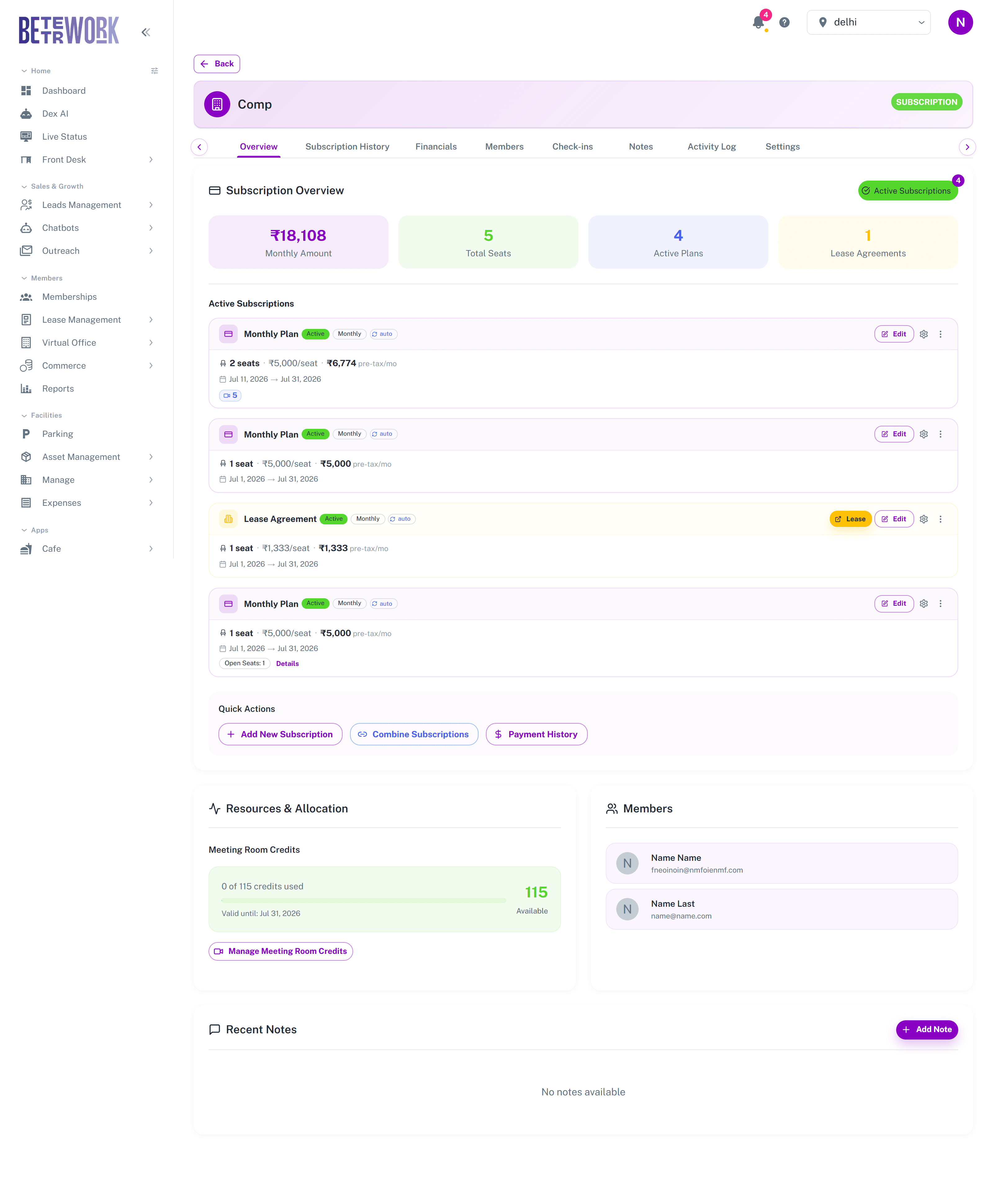
The stat cards summarise the account: the total monthly amount, total seats, active plans, and lease agreements. Below them, every active subscription gets its own card with seats, price per seat, the pre-tax amount, the term dates, and badges for things like auto-renewal and included meeting room credits. A plan with unassigned seats shows an Open Seats count, and Details opens the seat breakdown.
Two controls on each plan card do most of the day-to-day work, and they are worth knowing well:
- Edit changes the plan itself: its timeline, pricing, and seat count. If the plan is tied to a lease agreement, you first choose whether the change applies to the subscription alone or to the lease terms as well.
- The gear icon opens Subscription Settings, the control room for that plan. Everything from seat mappings to cancellation lives in there.
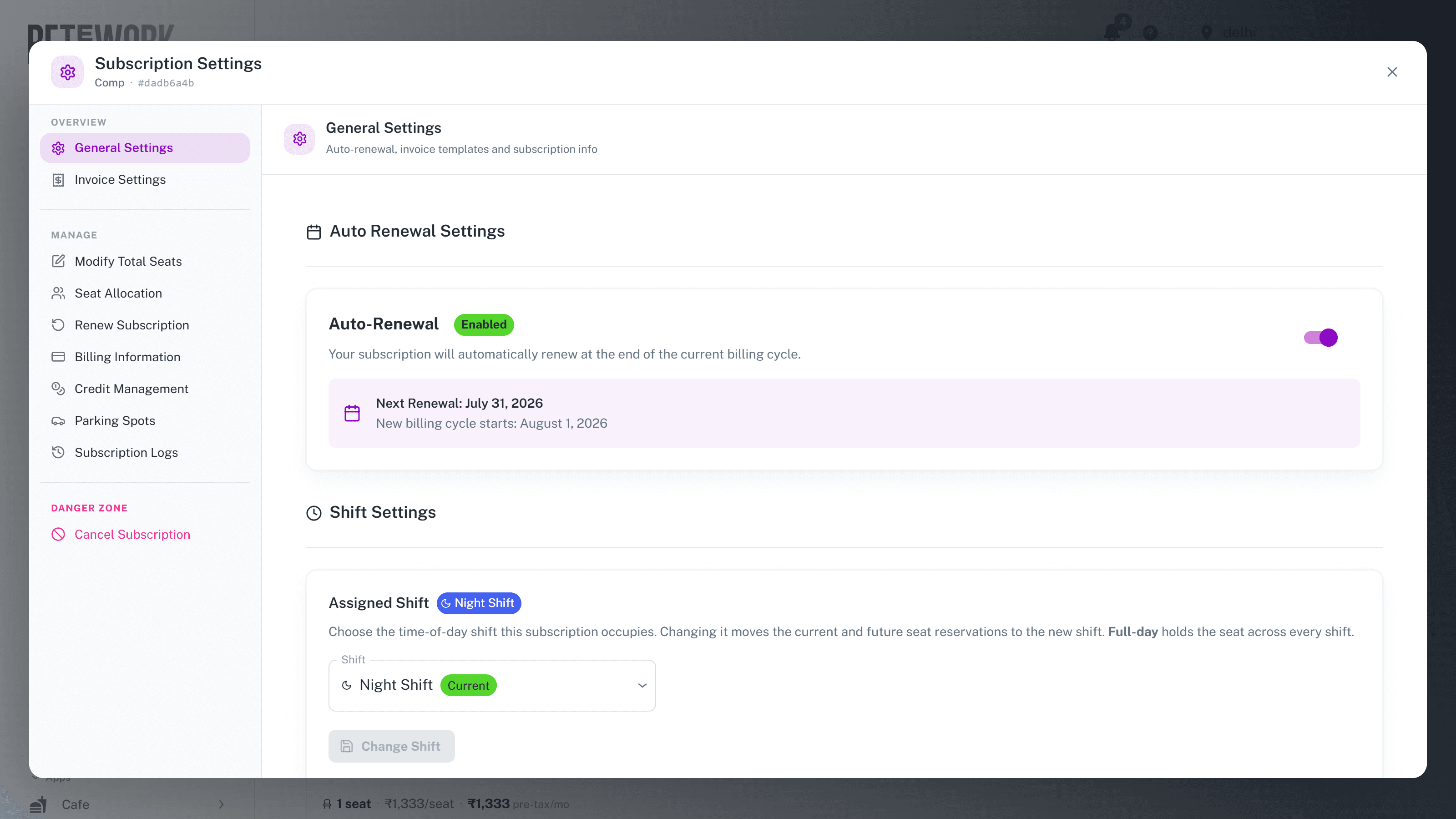
The Subscription Settings dialog is organised into sections:
- General Settings: the auto-renewal toggle with the next renewal date, and where you sell seats in shifts, which shift the subscription occupies. Changing the shift moves its seat reservations over.
- Invoice Settings: how this plan is invoiced.
- Modify Total Seats: add or remove seats mid-term. The billing difference is worked out for you.
- Seat Allocation: the seat mappings. Pick exactly which seats in which spaces the company sits on. This is the source Live Status draws from, so if the floor plan looks wrong, fix it here.
- Renew Subscription: extend the plan for the next term.
- Billing Information and Credit Management: the amounts, and the meeting room, printing, and cafe bundles that come with the plan.
- Parking Spots: parking allocations tied to the plan.
- Subscription Logs: a record of every change made to this subscription.
- Danger Zone, Cancel Subscription: end the plan now, at the end of the billing period, or on a specific date you pick. A scheduled cancellation shows as a banner on the plan until it takes effect, and you can edit the date or revoke it any time before then.
The three-dot menu on a plan card handles restructuring: split a plan into multiple subscriptions or combine several into one. The Quick Actions row below the cards adds a new subscription for the company, combines existing ones, or opens the payment history. The rest of the Overview shows the meeting room credit balance with a manage button, the company’s members, and recent notes.
Financials tab
The Financials tab is the company’s money story end to end, and it only appears if you have financial access. Everything here is the per-company view of the same data that lives in Order Management, arranged so you can answer the two questions customers actually ask: what do I owe you, and what have I paid.
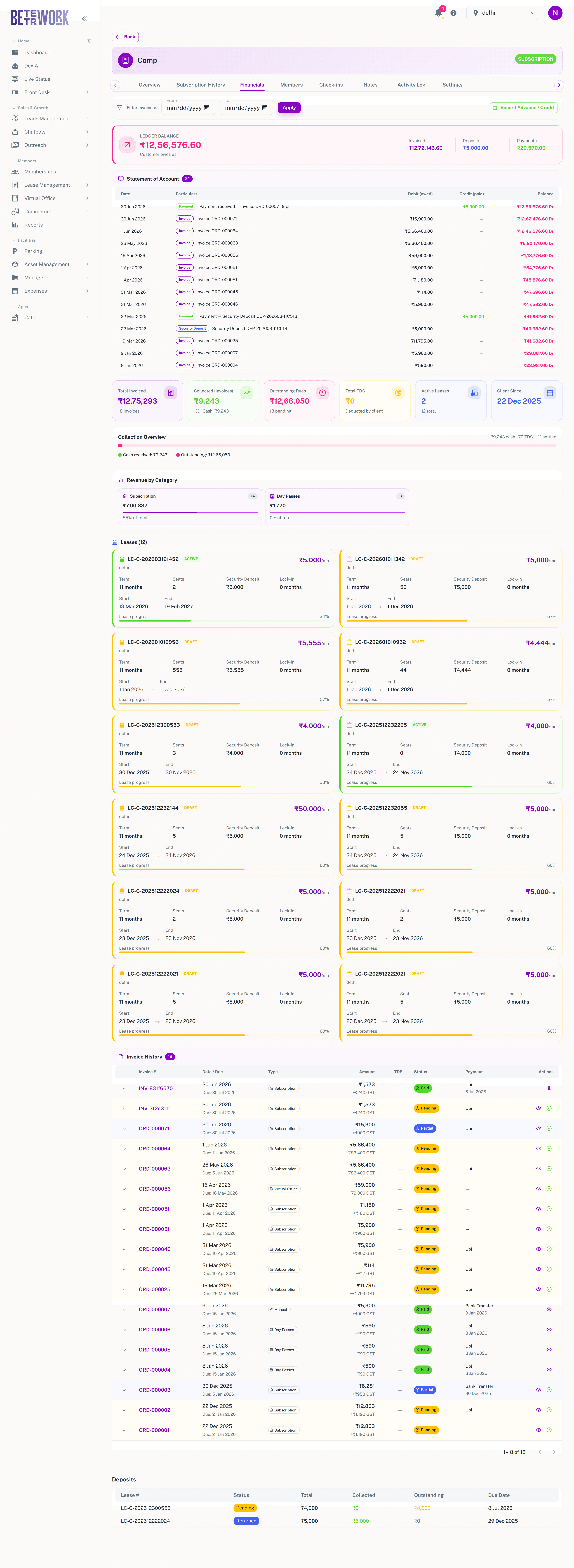
- Ledger Balance banner: the net position in one line, either what the customer owes you or the credit they hold with you, alongside totals for invoiced, deposits, payments, and where present TDS, credit notes, and advances.
- Statement of Account: a bank-statement style running ledger. Every invoice, payment, security deposit, credit note, and advance appears in date order with a debit or credit and the running balance after it. When a customer disputes their balance, you walk through this together.
- Summary cards: Total Invoiced with the invoice count, Collected with the collection percentage, Outstanding Dues with how many invoices are pending, Total TDS, Active Leases, and how long they have been a client.
- Collection Overview: a bar that splits everything invoiced into cash actually received, TDS deducted, and outstanding. TDS deserves the callout it gets: it is tax the client deducts at source, so it settles the invoice without ever arriving in your bank.
- Revenue by Category: what the invoiced amount is made of, subscriptions, meeting rooms, day passes, and so on, each with its share of the total.
- Leases: the company’s lease agreements as cards, with term, seats, security deposit, lock-in, and how far along each lease is.
- Invoice History: the full invoice table with date and due date, type, amount with tax, TDS, status, and how it was paid. The date filter at the top scopes it. Expand a row for the amount breakup (subtotal, tax, TDS deducted, paid), the payment reference and request status, the billing entity, and markers like Sent to Client or an issued credit note. Row actions open the invoice or accept a payment against it.
- Deposits: security deposits by lease, with total, collected, outstanding, and whether the deposit has been returned.
Recording an advance
The Record Advance / Credit button at the top logs money a customer paid before being invoiced: the amount, received date, payment method, a reference, and what it is for. The advance sits in the ledger as on-account credit and gets applied against future invoices, which is exactly how you handle a customer who pays a quarter up front.
The other tabs
- Subscription History: every plan the company has ever held, including expired and cancelled ones.
- Members: the people in this company, with their details and status.
- Check-ins: the company’s check-in log, so you can see how actively they use the space. Shown only with check-in access.
- Notes: the full note stream for this customer.
- Activity Log: an audit trail of actions taken on this account.
- Settings: company-level settings, shown only if you can manage subscriptions.
Still need help?
If the docs did not answer your question, our team will. Signed in customers can also raise a request from Support inside the admin console.