How DeskOS works
The admin console, page by page. The same documentation your team reads inside the product, open to anyone deciding whether DeskOS fits how they run their space.
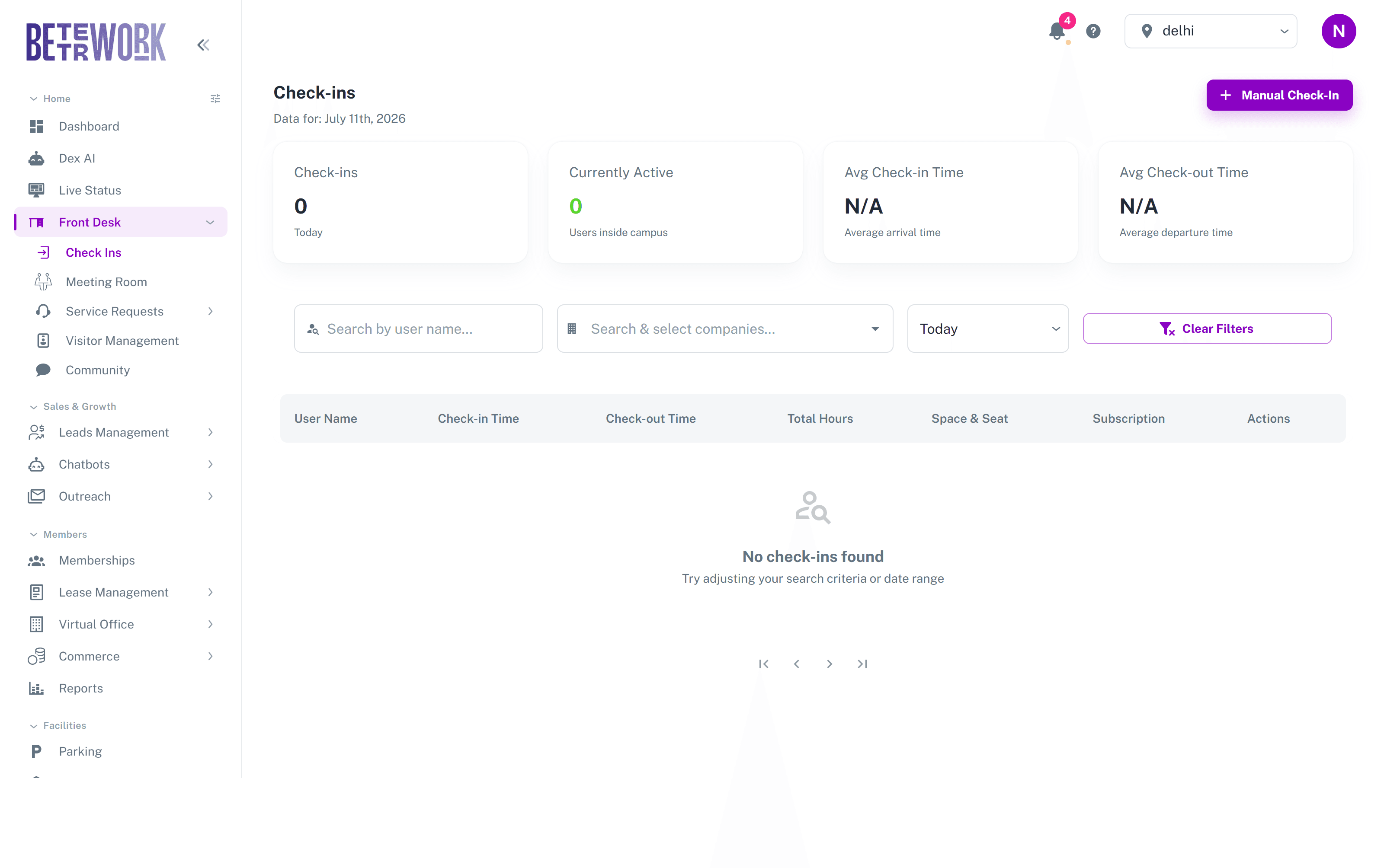
Check Ins is your attendance record. Every time a member enters the space, a check-in is logged here with the time, the location, and the subscription it was counted against. Use it to see who is in the building right now, spot members who never checked out, and understand how heavily your space is actually used.
How members check in and out
The standard flow runs on the member’s phone. In the member app they generate a personal QR code, then scan it at your front desk kiosk. The code is single use and expires after a few minutes, so it cannot be screenshotted and reused or passed to someone else. Checking out works the same way: generate a fresh QR, scan it on the way out.
If your space has access control connected, for example smart door locks through DeskOS Access or Spintly, you do not need the QR step at all. The first time a member opens a door that day, DeskOS records the door event and checks them in automatically. The check-in note shows it came from the door system, so you can always tell how someone entered.
Visitors get QR passes too, with a longer validity, so a guest can be scanned in at the kiosk without a member account. Those visits are tracked under Visitor Management.
The stats row
- Check-ins: how many members have come in on the selected day.
- Currently Active: members who are checked in right now and have not checked out.
- Average Check-in and Check-out time: when your members typically arrive and leave.
Working with the log
The table below the stats lists every check-in for the selected period. You can search by member name, filter by company, and pick a date range from today back to any custom window. Each row shows the check-in and check-out time and the current status: active, completed, or no checkout for members who left without scanning out.
The row menu gives you the front desk tools:
- Manual check-in: check a member in yourself, for example when the kiosk is busy or their phone is dead.
- Manual checkout: close an active check-in, with an optional note explaining why.
- Cancel: remove a check-in that was logged by mistake. A record of the cancellation is kept.
- Subscription details: see which plan the visit was counted against, including remaining visits on visit-based plans.
- Status override: mark a day as present, late, or absent, with a reason. Useful when a company tracks attendance through DeskOS.
Still need help?
If the docs did not answer your question, our team will. Signed in customers can also raise a request from Support inside the admin console.