How DeskOS works
The admin console, page by page. The same documentation your team reads inside the product, open to anyone deciding whether DeskOS fits how they run their space.
Invoices is the busiest page in Commerce. Every invoice generated from an order lands here, and this is where you send them to clients, record payments against them, chase the unpaid ones, and export the lot for your accountant.
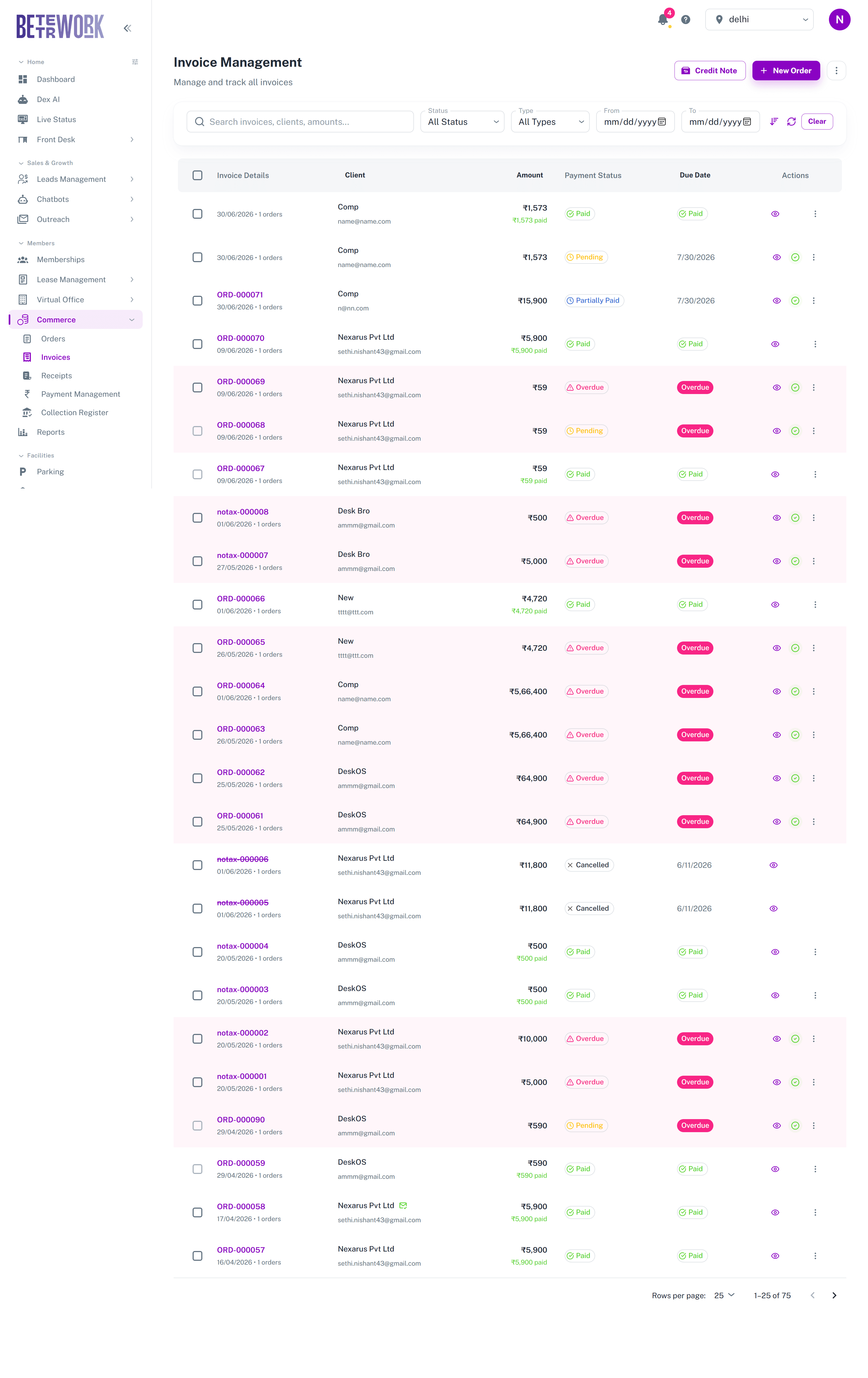
Finding what you need
Search across invoice numbers, clients, and amounts, or filter by payment status: pending, partially paid, paid, overdue, due today, or due soon. The type filter separates regular invoices from proforma and cancelled ones, and the date range narrows the window. Overdue rows are highlighted in red across the whole table, so the ones that need chasing stand out at a glance.
Working a single invoice
Each row shows the invoice number, client, amount with how much has been paid, the payment status, and the due date. The eye icon opens the invoice, and the check icon records a payment against it. Recording a payment supports the real-world mess: split a settlement across cash, bank transfer, an advance on account, adjusted deposit, and TDS deducted by the client, all on one invoice. A recorded payment can be undone with a reason if it was logged by mistake, and every invoice keeps its full payment breakdown.
Raising one from scratch
Most invoices arrive here on their own, generated from an order. The ones you raise by hand tend to be the small sales that never went through a subscription, and a day pass is the usual example.

Bulk actions
Selecting invoices summons the bulk action bar, which is how you run billing day:
- Send the invoices themselves to clients, by email or WhatsApp.
- Send payment reminders for unpaid invoices, also by email or WhatsApp.
- Apply late charges to overdue invoices in one pass.
- Export to Excel for analysis, download the invoice PDFs, or export to Tally for your accountant.
Credit notes
When you need to reduce or refund an invoiced amount, issue a credit note from the Credit Note button. The credit note references the invoice, and the invoice carries a marker showing one was issued, so the trail stays intact.
Still need help?
If the docs did not answer your question, our team will. Signed in customers can also raise a request from Support inside the admin console.