Digital signage software for every screen in your building.
DeskOS is digital signage software for offices, coworking spaces and managed workspaces. Pair any screen with a browser in a minute, schedule playlists of images, video and web pages, and, with DeskOS, put live room, event and visitor boards on the wall that nobody has to update.
- Runs in the browser on TVs, sticks, tablets and mini PCs
- Every slide scheduled by date, weekday and hour
- Live boards for rooms, events, cafe and visitors
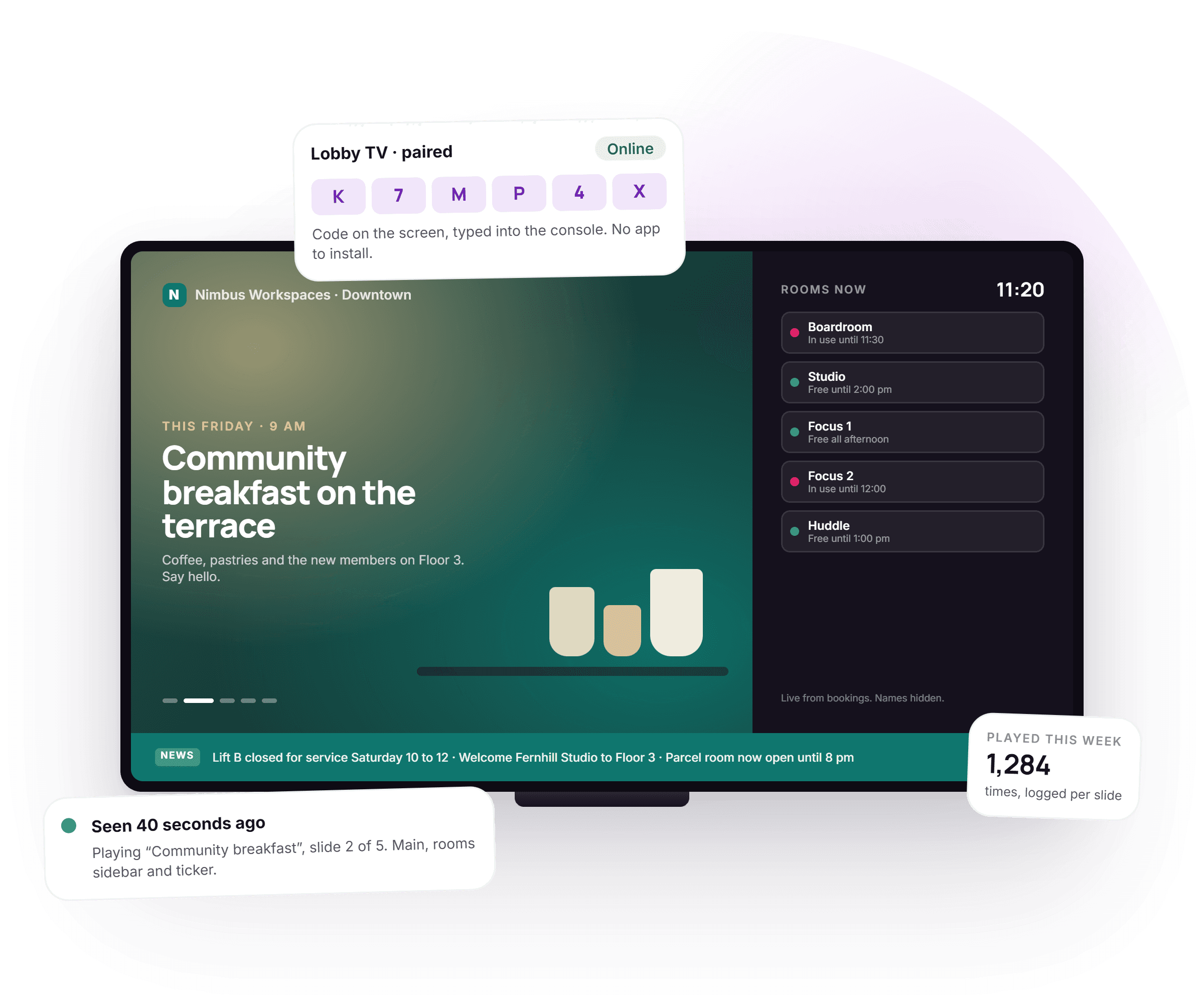
- Screen health, offline playback and proof of play
See it on your own screens
A free thirty minute demo with a person, not a recording. We pair one of your screens and build a first playlist in front of you.
No player box to buy. Anything with a browser will do.
The player is a web page. Whatever already drives the screen can play it.
- A smart TVOpen the browser on the TV, go to your screen address and pair it. The lobby screen you already bought is the player.
- A streaming stick or boxA Fire TV Stick or an Android box behind a plain monitor turns any HDMI screen into a signage screen for the price of the stick.
- A tabletPortrait on a wall mount by reception or the lift, for a visitor welcome or an events board.
- A mini PCFor the screens that must never be touched: a small computer in kiosk mode, opening the screen link on boot.
Everything between the file and the wall.
Upload it, schedule it, and know it played. The console handles the screens, the timing and the proof, so nobody walks round the building with a USB stick.
- Pair this screenK7MP4XValid 15 minutes · no look-alike letters
Pair a screen in a minute
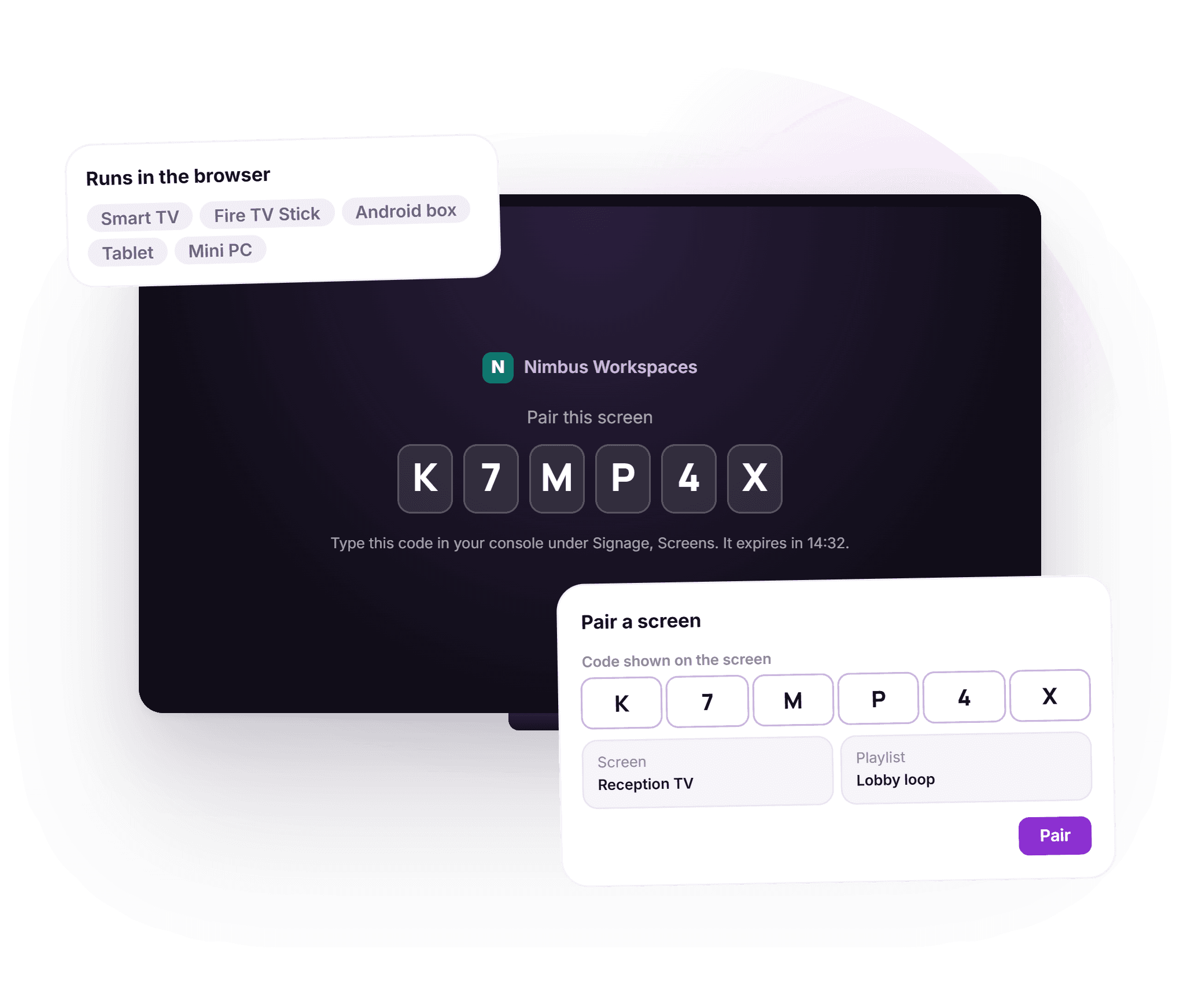
Open your screen address on the TV and it shows a six character code. Type it into the console and the screen is yours. No app store, no installer, no cable to a laptop.
- LayoutLandscapePortraitFullTickerSidebarBothBoardYour logo and colours, dark or light
Layouts, not a design tool
Full screen, main with a ticker, main with a sidebar, both, or a single board. Landscape or portrait. Your logo and colours are applied for you.
- Community breakfastImage12sWelcome filmVideo32sTransit times pageWeb page20sWi-Fi and house rulesText10s
Playlists of anything
Images, video, web pages, text slides and a clock, in the order you drag them, with a duration and a fade, slide or cut on each one.
- Cafe menu · when it playsLive nowMTWTFSSHours8:00 to 11:00 amDates1 Sep to 31 Dec
Every slide on its own schedule
A date range, the weekdays and the hours, in the local time of the screen. The breakfast menu plays in the morning and disappears by itself.
- Rooms now11:20BoardroomIn use until 11:30StudioFree until 2:00 pmFocus 1Free all afternoonFocus 2In use until 12:00
Live boards nobody updates
Room availability, one room’s day, occupancy, events, announcements, the cafe menu and a visitor welcome, read straight from DeskOS as they change.
Where the room bookings come from - Cafe menu boardseen 12 s agoFloor 2 roomsseen 51 s agoReception portraitoffline · 2 h agoLift lobbyseen 8 s ago
Know every screen is alive
Each screen checks in every minute. The console shows which are online, when each was last seen, what it is playing and the last error it hit.
- 10:42Network lost at Riverside10:42Still playing the last good playlist10:51Back online, checked in04:00Fresh reload every night
The network drops, the show goes on
A screen that loses its connection keeps playing its last good playlist, and a nightly reload keeps it fresh. Nobody walks past a blank lobby TV.
- Plays · Lobby TV · 7 daysCSVPer screen, per slide, per day424 plays
Proof of play
How many times each slide played, on which screen, on which day, for up to a year back. Export it as a CSV for a sponsor, a tenant or a landlord.
- View PINOn · remembered on this screenSettings PINOn · controls lockedScreen linkRotate · old link dies at onceBooker namesHidden
Locked down and private
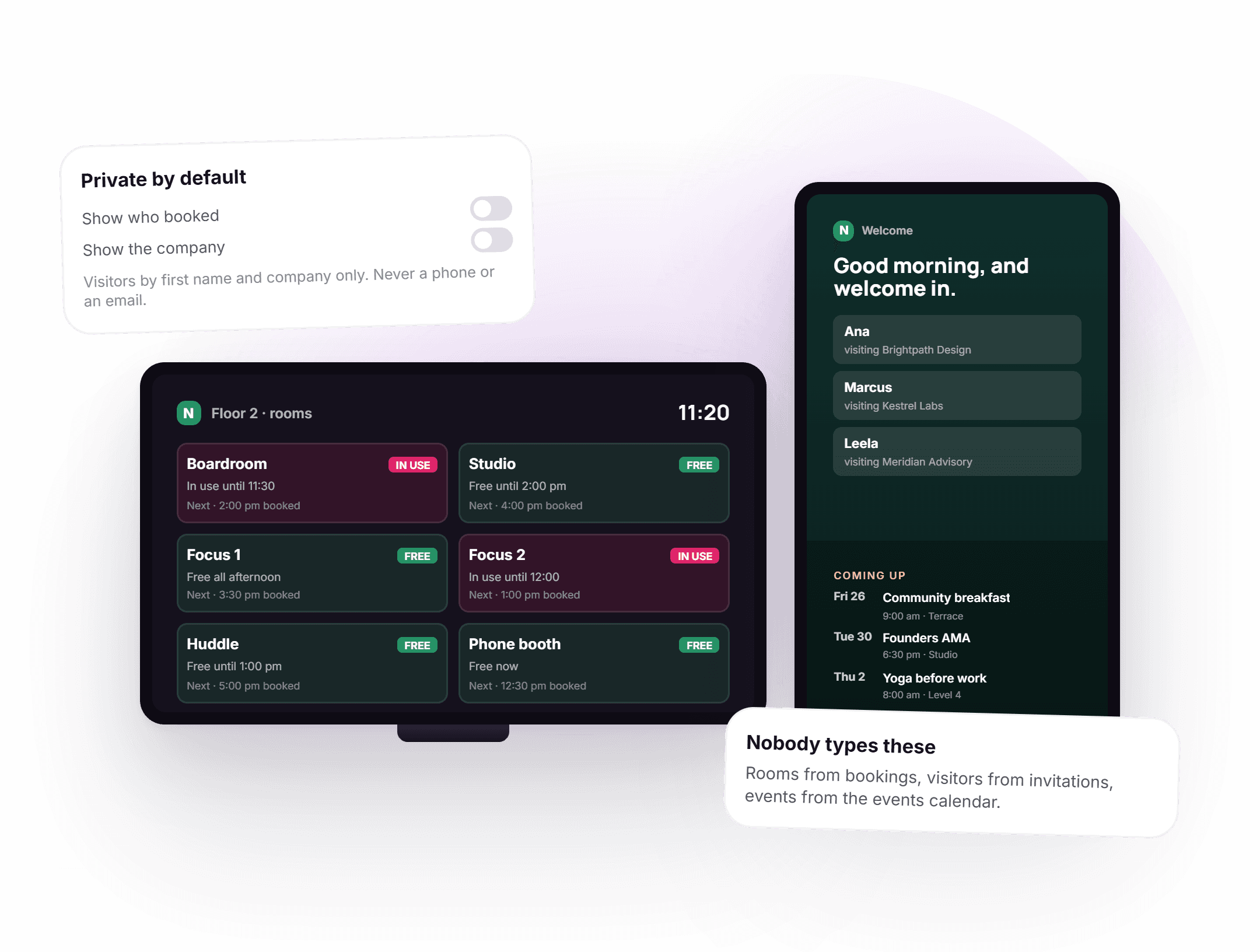
An optional view PIN and settings PIN on each screen, a link you can rotate at once, and booker and company names hidden until you switch them on.
Thirty minutes with a person, on one of your own screens.
From a blank TV to a scheduled screen.
Five steps, the first two once per screen. After that the screen runs itself and reports back.
- 1Once, per screen
Pair it
Open the screen address in the device’s browser. Type the six character code it shows into the console, name the screen and pick its location.
- 2Once, per screen
Choose a layout
Full screen or zoned with a sidebar and ticker, landscape or portrait, dark or light, in your colours and with your logo.
- 3Whenever you like
Build the playlist
Upload images and video, add web pages and text slides, drop in live boards. Give each slide a duration and, if it needs one, a schedule.
- 4Before it goes live
Preview and check the gaps
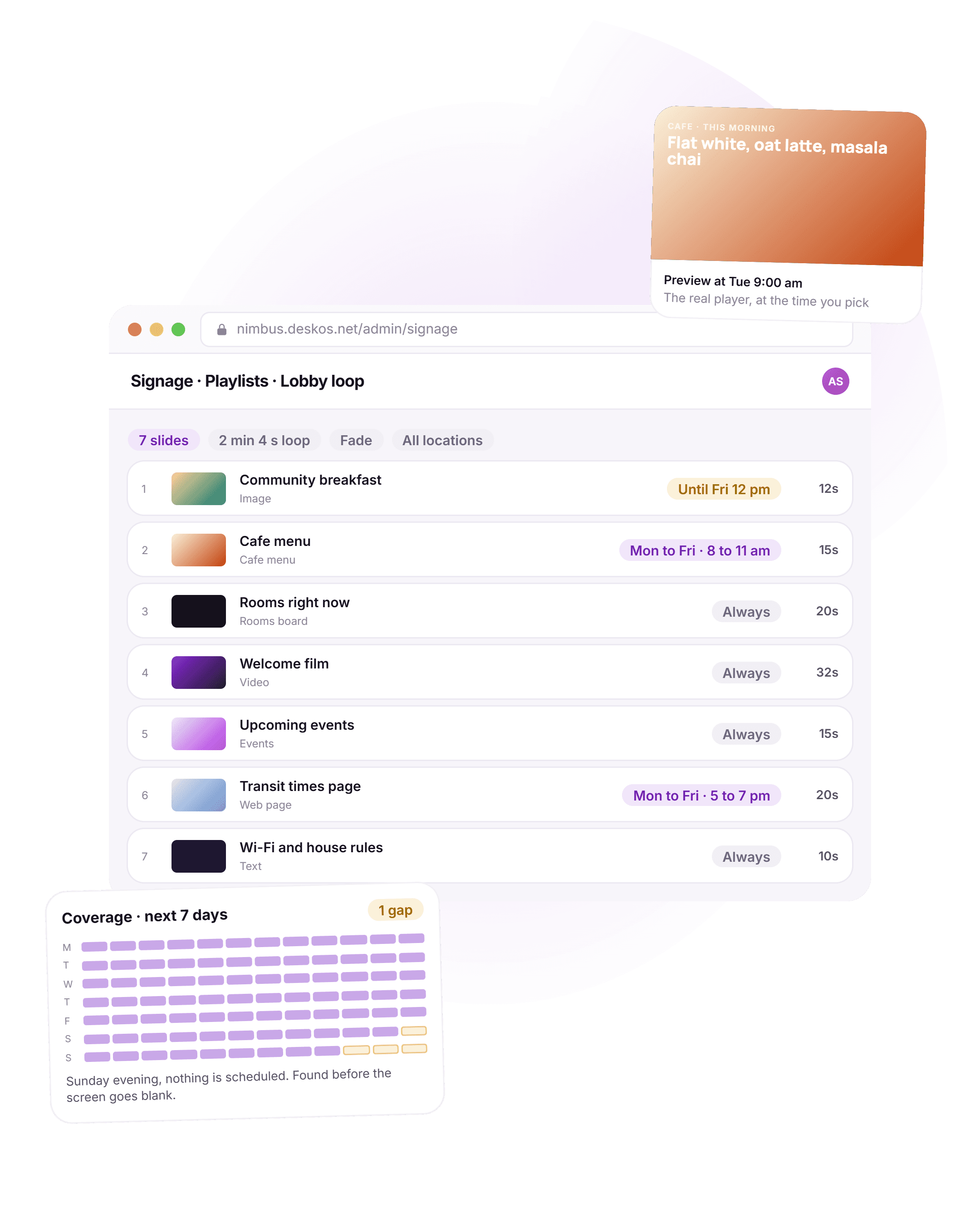
Preview the real player at any date and time. The coverage grid shows any hour in the next two weeks when nothing is scheduled.
- 5Every minute after
It plays, and tells you
The screen checks in, plays offline if it must, and logs every slide it shows. Health and proof of play are in the console.
A building full of screens, and nobody babysitting them.
Four things that usually need a person walking around, and what they look like when the screens look after themselves.
The TV on the wall is already a signage player.
There is nothing to install. Any device with a web browser plays DeskOS signage: a smart TV, a streaming stick behind a monitor, a tablet, a mini PC. Open your screen address and it shows a six character code, valid for fifteen minutes and free of letters that look alike. Type it into the console and the screen starts playing. Or skip the code and open the screen’s private link, which you can rotate to cut off an old device at once.
- Smart TVs, streaming sticks, Android boxes, tablets and mini PCs
- Six character pairing code, valid for fifteen minutes
- A private link per screen, rotated in one click
- Optional view PIN and settings PIN on the screen itself
The morning menu at breakfast, the transit times at five.
A playlist is an ordered loop of slides. Each slide has its own duration and transition, and can have a schedule: a date range, the weekdays and the hours it plays, in the screen’s local time. The coverage grid looks two weeks ahead and shows every hour where nothing would play, so a gap is found in the console rather than by a visitor looking at a black screen. Preview shows the real player at whatever date and time you pick.
- Images, video, web pages, text slides and a clock
- Date range, weekdays and hours on every slide
- Coverage grid for up to fourteen days ahead
- Preview at any date and time before it goes live
Screens that update themselves, because the data is already there.
When signage runs inside DeskOS, some slides are not pictures at all. The rooms board reads the booking calendar. The events board reads the events calendar. The visitor welcome reads today’s invitations. The cafe menu reads the cafe. Nobody makes a new slide when a meeting moves or a guest is added, and the privacy defaults keep booker names, company names, phone numbers and emails off the wall.
- Room availability for a floor, or one room’s day
- Seats and occupancy, events and announcements
- Cafe menu and a visitor welcome by first name and company
- Booker and company names off until you switch them on
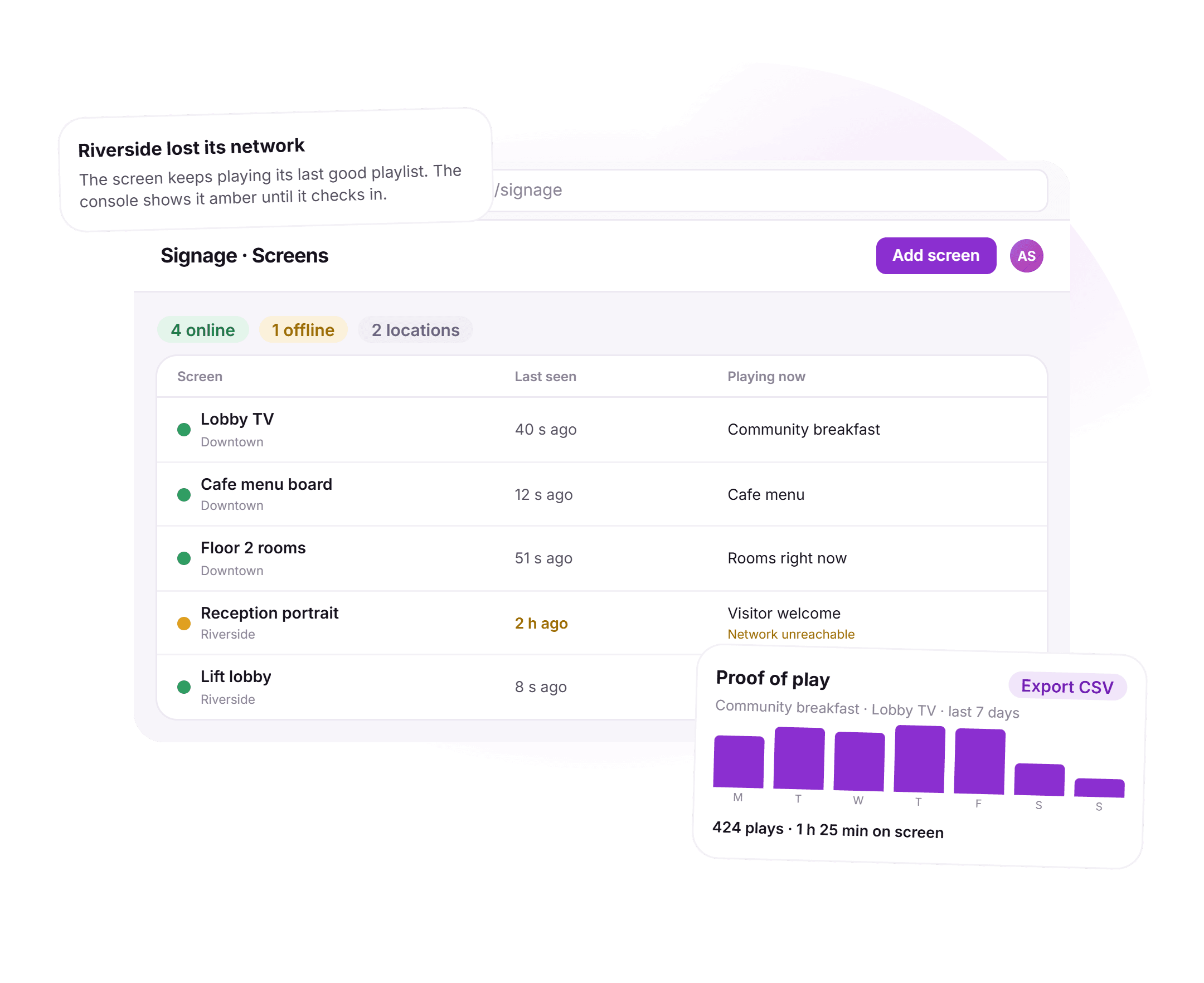
Which screens are up, what they played, and for how long.
Every screen checks in once a minute. The screens list shows which are online, when each was last seen, what it is playing, which player version it runs and the last error it hit. A screen that drops off the network keeps playing its last good plan and shows amber until it is back. Proof of play counts every slide shown, per screen and per day, for up to a year, and exports to CSV.
- Online if seen in the last three minutes, amber if not
- What is playing now and the last error, per screen
- Offline playback of the last good playlist
- Proof of play per screen, slide and day, with CSV export
See it running on your screens, with your content.
On its own, or inside DeskOS.
Signage is the same product either way. What changes is how much of the screen can fill itself.
For an office, a lobby, a showroom or a building that only needs its screens run well. You get the whole signage product and none of the rest.
- Images, video, web pages, text slides and a clock
- Playlists, scheduling, layouts and your branding
- Screen health, offline playback and proof of play
- Screens across as many locations as you run
For coworking spaces and managed offices already running on DeskOS, or moving to it. Everything on the left, plus boards that read from the rest of the system.
- Room availability and one room’s day, from bookings
- Seats and occupancy, from the floor plan
- Events and announcements, from the member app
- Cafe menu and visitor welcome, from the cafe and invitations
The screen reads what the rest of DeskOS already knows.
Each live board is a view of data somebody is already keeping for another reason. When that changes, the wall changes with it.
- Rooms boardFree, in use and next booking for every room, read from the calendar members book in.Meeting rooms
- Visitor welcomeToday’s expected guests by first name and the company they are visiting, from their invitations.Visitor management
- Events and announcementsUpcoming events and the notices you already post to members, on the wall as well as in the app.Member engagement
- Cafe menuThe menu on the board is the menu at the till, so a sold out item is not still being advertised.Cafe and POS
Everything in DeskOS digital signage.
For the reader who wants the whole feature list on one screen. Every line is something it does today.
Screens
- Plays in any modern web browser, no native app
- Pairing by six character code, valid for fifteen minutes
- A private link per screen, rotatable at once
- Optional view PIN and settings PIN, rate limited
- Each screen belongs to one location
- Screen wake lock and a nightly reload
Layout and look
- Full, main with ticker, main with sidebar, both, or single board
- Landscape or portrait
- Sidebar with rooms, occupancy, events, announcements or a clock
- Ticker off, fixed text or the announcements feed
- Dark or light, your brand colours and logo
- Clock on or off, synced to the server
Content
- Images: JPEG, PNG, GIF and WebP up to 20 MB
- Video: MP4 and WebM up to 300 MB
- Web pages and text slides
- A media library shared across the organisation or kept per location
- Media preloaded before it is due on screen
- Clock and date slide
Playlists and scheduling
- Ordered loops with fade, slide or cut transitions
- Shuffle on or off
- A duration and transition per slide
- Date range, weekdays and hours per slide, in local time
- Coverage grid up to fourteen days ahead
- Preview the real player at any date and time
Live boards from DeskOS
- Room availability board and one room’s day
- Seats and occupancy
- Upcoming events and announcements
- Cafe menu
- Visitor welcome, first name and company only
- Booker and company names hidden by default
Health, reports and access
- A heartbeat every sixty seconds
- Last seen, now playing, player version and last error
- Offline playback of the last good plan
- Proof of play per screen, slide and day, up to 366 days
- CSV export of proof of play
- Separate view and manage permissions for your team
Missing something? Ask. It may already be in there.

“DeskOS has been really valuable for us. The visibility helps us make better decisions, while the automation has taken a lot of manual work off our plate.”
Sanjeev Laroia, Spacetime · 3,000+ seats across India
700 invoices in a single click
A full month raised in one action, GST worked out per invoice, and every one delivered on WhatsApp and email the same day.
100 leads a day, nobody typing
Enquiries land, get qualified by workflow and are sent an invitation to come and see the space, without anyone opening a sheet.
Meeting rooms stop being your problem
Members book from the app, credits come off automatically, overages land on the next invoice, and the front desk keeps no diary.
What changes when the screen knows about the building.
A USB stick in the TV works until the content changes. A standalone signage tool works until you want the screen to show what is happening in the building. This is the difference day to day.
- Changing what is on the lobby TV
- A USB stick in the TV
- Walk over with a new USB stick
- A standalone signage tool
- Log in to the signage tool and upload the new file
- DeskOS
- Upload it in the console and every screen on the playlist picks it up
- The breakfast menu at 8 and not at 3
- A USB stick in the TV
- Somebody swaps it by hand, or it stays up all day
- A standalone signage tool
- Usually a schedule per item
- DeskOS
- A date range, weekdays and hours on every slide, plus a coverage grid for the gaps
- Which meeting rooms are free
- A USB stick in the TV
- Not on the screen at all
- A standalone signage tool
- Depends on the tool; often a calendar connector to set up and keep working
- DeskOS
- Read from the same booking calendar the app and the room panels use
- Welcoming today’s visitors
- A USB stick in the TV
- A printed sign at reception
- A standalone signage tool
- A slide typed in each morning
- DeskOS
- Read from today’s invitations, first name and company only
- Is that screen even on?
- A USB stick in the TV
- Somebody notices it is black
- A standalone signage tool
- A status page, where the tool has one
- DeskOS
- A heartbeat every minute, last seen and last error in the console
- The network goes down
- A USB stick in the TV
- The stick keeps playing, but nobody can change it
- A standalone signage tool
- Depends on the player
- DeskOS
- The screen keeps playing its last good playlist until it reconnects
- Proving a sponsor’s slide ran
- A USB stick in the TV
- Nobody can
- A standalone signage tool
- A report, sometimes on a higher tier
- DeskOS
- Proof of play per screen, slide and day, exported as CSV
Bring the awkward screens. The portrait one by the lift, the one with no network cable, the sponsor who wants a report.
Your first screen, set up with you.
Before you sign anything, we pair one of your own screens on a call and build a first playlist with your content. If you run DeskOS, we add a live rooms or events board so you see it fill itself.
What happens next
- 1
Tell us about your screens
Fill in the form or message us on WhatsApp. How many screens, where they hang, what is plugged into them and what you want them to show.
- 2
We pair one with you
On a call, we pair one of your own screens, build a first playlist with your images and, if you run DeskOS, drop in a live rooms or events board.
- 3
Roll out the rest
Every other screen is a code and a playlist away. The person who set up your first screen is the person who answers when you call.
Questions people ask about digital signage.
What is digital signage software?
Digital signage software decides what plays on the screens in a building, and when. You upload images, video and other content in a web console, arrange it into playlists and schedules, and assign those to screens. DeskOS signage does that, and inside DeskOS it can also show live boards for meeting rooms, events, the cafe menu and visitors without anyone making a slide.
Can I use DeskOS signage without the rest of DeskOS?
Yes. You can run a DeskOS workspace for signage alone and use images, video, web pages, text slides and the clock on as many screens as you need. The live boards read from other DeskOS modules, so the rooms board needs room bookings, the events board needs events, and so on. Talk to us about signage-only pricing.
What hardware do I need?
Any device with a modern web browser. A smart TV’s built-in browser, a Fire TV Stick or Android box behind a monitor, a tablet or a mini PC all work. There is no native app to install. You open your screen address, pair it with the code it shows, and it plays.
How do I connect a screen?
Open your screen address in the device’s browser. It shows a six character code that is valid for fifteen minutes. Type that code into the console, name the screen and choose its location and playlist. You can also open a screen directly from its private link, and rotate that link at any time to cut off an old device.
What happens if the internet goes down?
The screen keeps playing the last good playlist it received. When the connection comes back it checks in and picks up any changes. In the console the screen shows as offline once it has not checked in for three minutes, so you know which one to look at.
Which file types can I upload?
Images in JPEG, PNG, GIF or WebP up to 20 MB each, and video in MP4 or WebM up to 300 MB each. You can also add web pages, text slides and a clock, and in DeskOS, live boards for rooms, occupancy, events, announcements, the cafe menu and visitors.
Can I schedule content for certain times?
Yes. Every slide can have a date range, the weekdays it plays and the hours it plays, in the local time of the screen. The coverage grid shows any hour over the next one to fourteen days where nothing is scheduled, and preview shows the real player at any date and time you choose.
Can I show a web page on a screen?
Yes, as a slide in a playlist. The page has to allow itself to be shown inside another page; some sites block that, and those will not display. Dashboards, transit times and your own site usually work.
Does it show personal information on the screen?
Not by default. Room boards hide who booked a room and which company they are from until you switch those on per screen. The visitor welcome shows a first name and the company being visited, never a surname, phone number or email. Money never appears on a screen.
Can I prove content was shown?
Yes. Proof of play counts how many times each slide played, per screen and per day, for up to 366 days back, with the time on screen. You can export it as a CSV for a sponsor, a tenant or a landlord.
Can I run screens across several locations?
Yes. Each screen belongs to one location, and media and playlists can be shared across your whole organisation or kept to one location. Your team sees the screens for the locations they have access to, with separate view and manage permissions.
The rest of the system this plugs into.
- Meeting roomsBookings, credits and room panelsThe rooms board reads the same calendar members book in.Meeting rooms
- Visitor managementFront desk, kiosk and passesThe visitor welcome reads today’s invitations.Visitor management
- Member engagementApps, service requests and eventsEvents and announcements reach the wall as well as the app.Member engagement
- HardwareReaders, printers, kiosks and panelsRoom panels, kiosks and the rest of the hardware DeskOS runs.Hardware
Bring one of your screens.
We will pair it on a call and build a first playlist with your content, and show you the live boards if you run DeskOS.