How DeskOS works
The admin console, page by page. The same documentation your team reads inside the product, open to anyone deciding whether DeskOS fits how they run their space.
Live Status
The Live Control Center: full visibility of your space, seat by seat, in real time.
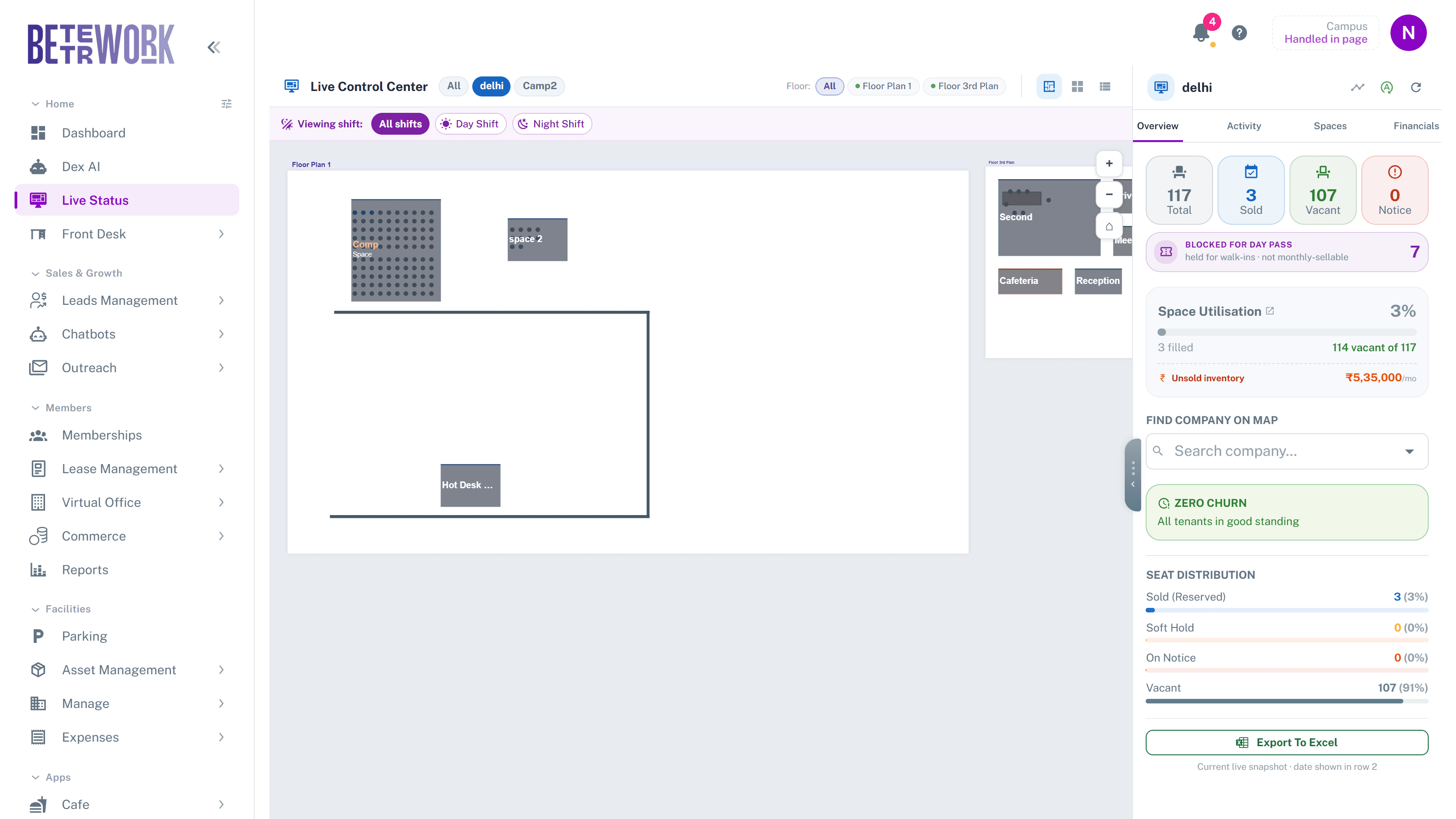
Live Status shows the current state of every seat in your space: what is sold, what is on hold, what is on notice, and what is vacant. Where the dashboard summarises, this page lets you drill all the way down to a single seat and the company sitting on it.
Reading the numbers
The panel on the right is your running scoreboard. At the top you get four totals: Total seats, Sold, Vacant, and Notice. Below that, Space Utilisation shows the fill percentage, and Unsold Inventory estimates the monthly revenue sitting in your vacant seats. The Seat Distribution bars at the bottom split everything into Sold, Soft Hold, On Notice, and Vacant so you can see the mix in one look.
The panel has tabs. Overview is the scoreboard described above. Activity shows recent seat assignments and upcoming move-ins. Spaces lists every space with its own fill level. If you have financial access you also get a Financials tab with revenue for the selected location.
Three ways to view your space
The three icons at the top right of the page switch between views. Pick whichever fits what you are doing:
- Floor Plan: your actual floor layout with every seat drawn on it, coloured by status. Best for walking a visitor through the space or checking a specific desk.
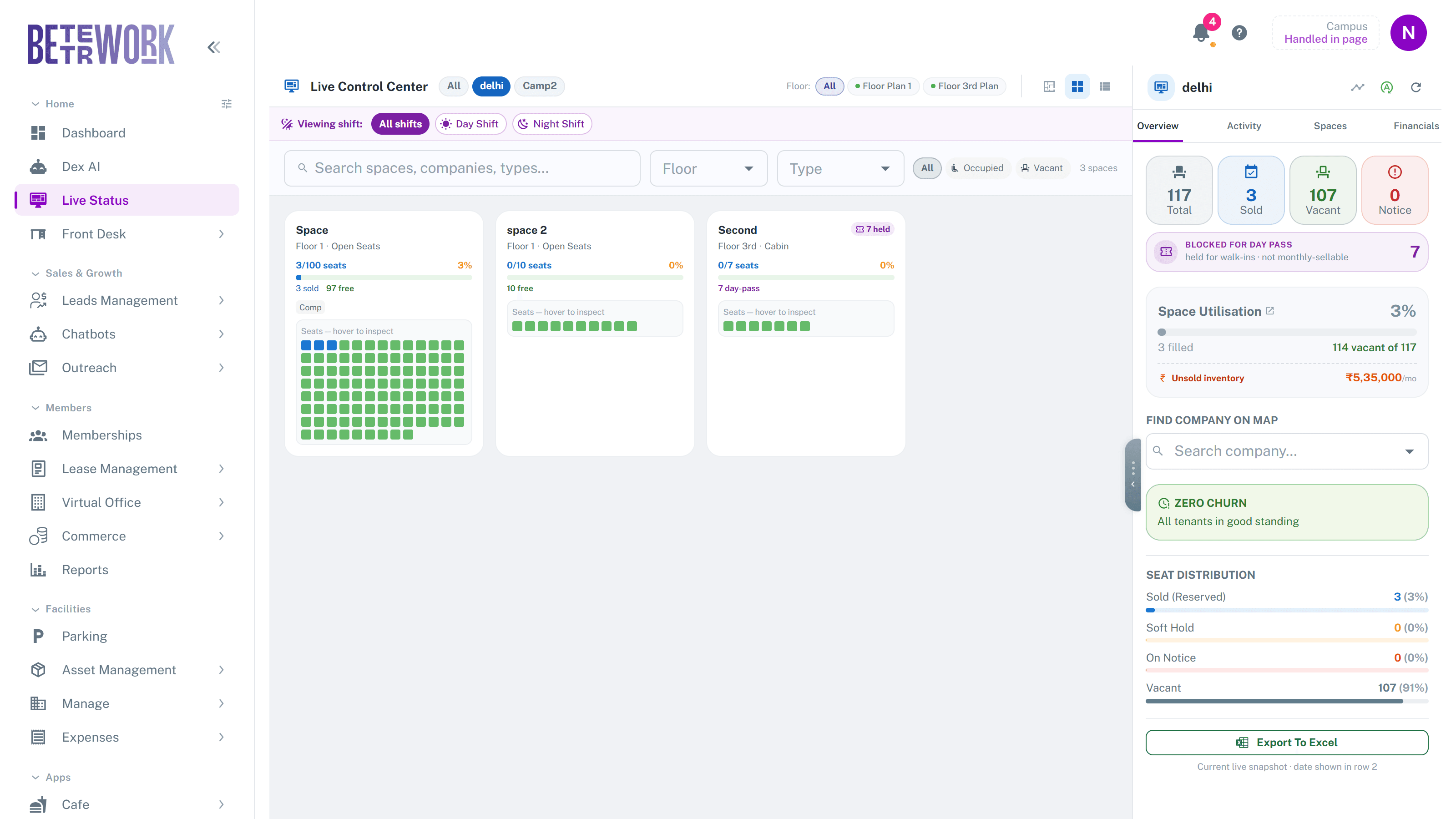
- Grid: one card per space, with a dot for each seat. Best for scanning fill levels across many spaces at once.
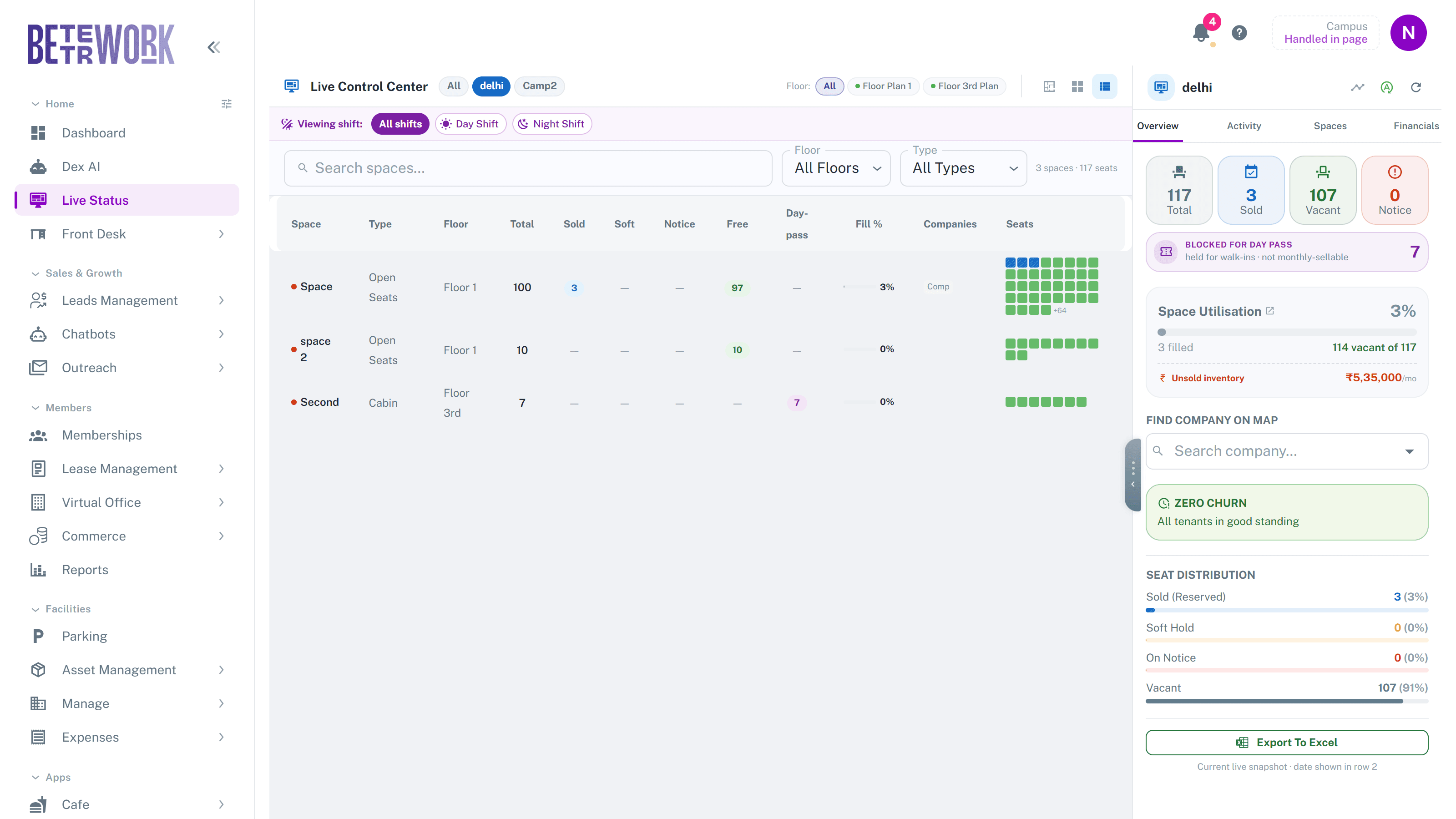
- List: a table with totals, sold, soft holds, notice, free seats, and fill percentage per space. Best when you want exact numbers or need to sort things out quickly.
Filters and search
- Location chips next to the page title switch between your centres, or show all of them combined.
- Floor chips filter the page down to a single floor.
- In Grid view you can search spaces and companies, filter by floor or space type, and show only occupied or only vacant spaces.
- Find Company on Map, in the right panel, highlights every seat a company occupies. Useful when someone asks where a team sits.
Going back in time
The timeline button in the right panel opens an occupancy history. Pick any past date and the floor plan and seat counts rewind to how the space looked on that day, with a banner reminding you that you are viewing a snapshot. Click Back to Live to return to the present.
Shifts
If a location sells seats in shifts, a shift bar appears under the header. Choose a shift to see occupancy for that shift only. Full-day bookings show as occupied in every shift.
Still need help?
If the docs did not answer your question, our team will. Signed in customers can also raise a request from Support inside the admin console.